App Users & User Groups
Control who can use your app and what they can see, per app.
Managing App Users and User Groups
Every app you build has its own App Users screen, where you control exactly who can use that app and what they're allowed to see. You'll find it by opening your app and going to App Users. This is different from the workspace-wide Application Users screen, which shows end-users across every app at once, and from Workspace Users & Roles, which manages the people who build apps rather than the people who use them.
User Groups
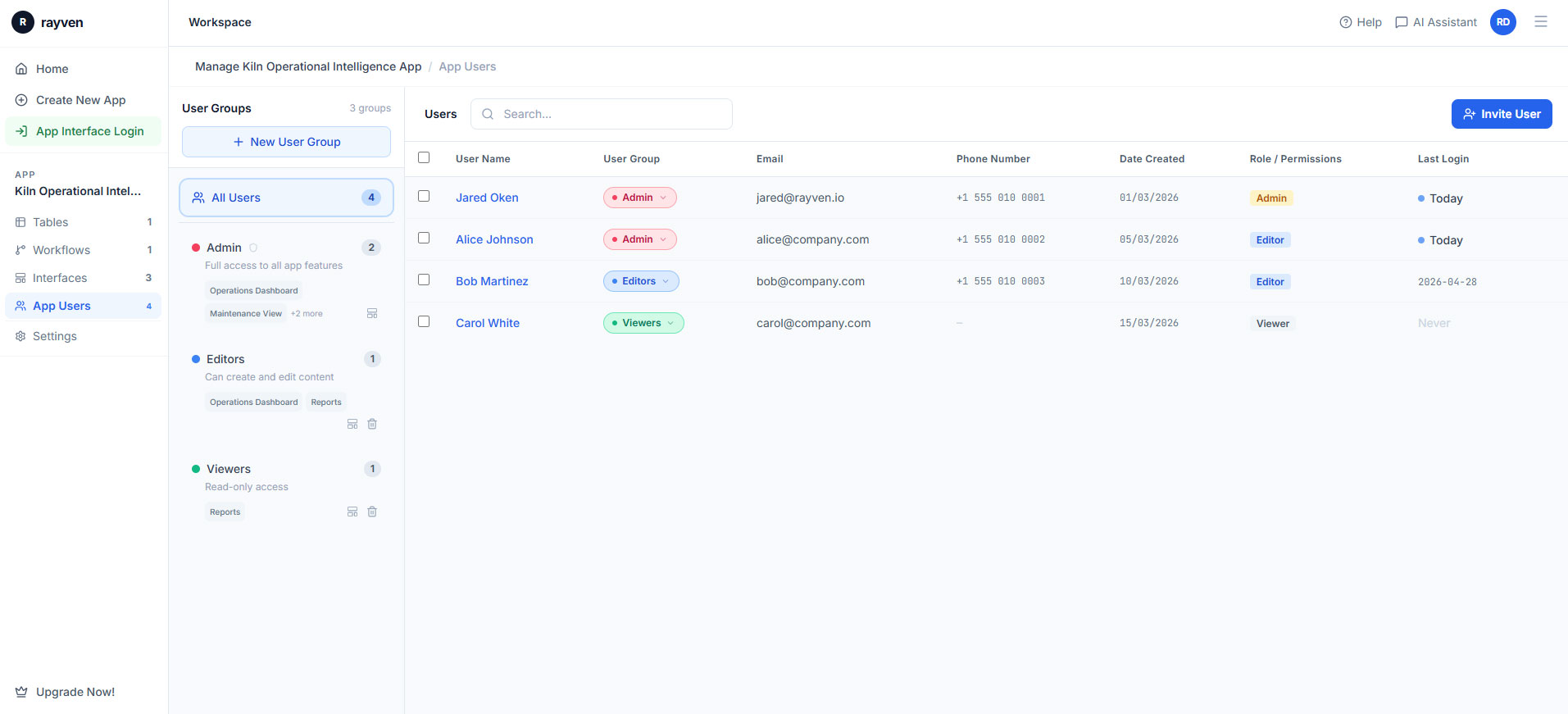
User Groups are how you organize people who should have the same level of access, for example, an Admin group, an Editors group, and a Viewers group. You'll see your groups listed in the left panel, each with its own name, description, and color so they're easy to tell apart at a glance. Every app starts with a default group (often called "Admin"), marked with a shield icon, this group can't be deleted.
To create a new group, click + Group and set its name, description, and color.
Inviting and managing users
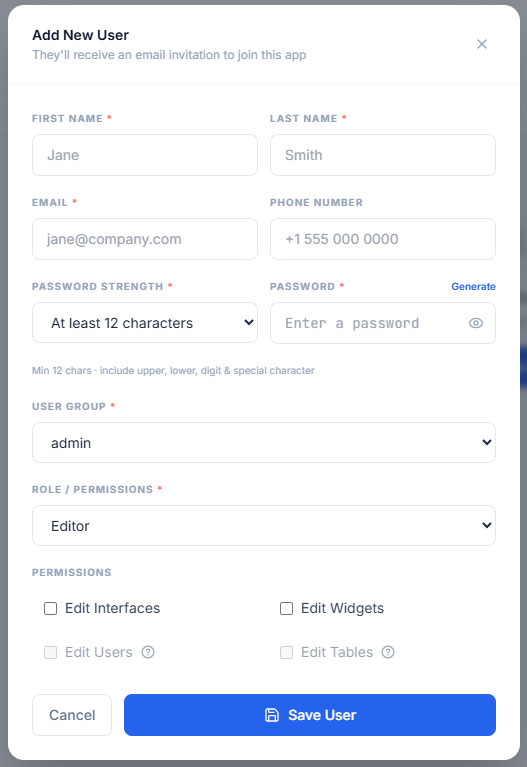
To invite someone, fill in their First Name, Last Name, and Email (required), and optionally a Phone Number. Set a Password that meets the required strength (12+ characters, with upper and lower case, a digit, and a special character), or click Generate for one. Then choose their User Group and a Role/Permissions level, Admin, Editor, or Viewer, and fine-tune individual Permissions (Edit Interfaces, Edit Widgets, Edit Users, Edit Tables), some of which may be unavailable depending on the role you chose. Click Save User to send the invite.
Once someone's been added, you can edit their phone number, group, role, or switch their status between Active and Inactive at any time.
If you need to update several people at once, select them using the checkboxes to reveal bulk actions, you can Move to group or Remove multiple users in one step.
Controlling what each group can see
Access in Rayven isn't just about who can log in, it's also about what they see once they're in. Each User Group has its own Interface-access settings, where you choose which Interfaces (for example, an Operations Dashboard, Maintenance View, Reports screen, or Mobile Field App) its members are allowed to open.
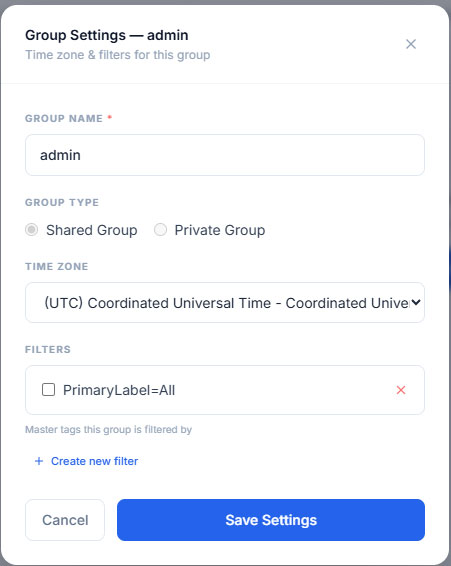
Open a group's Settings to mark it Shared Group or Private Group, set its Time Zone, and manage its Filters, row-level, label-based rules (like PrimaryLabel=All) that scope which rows of a Table this group can see. Click + Create new filter to add another. These let the same Interface show different data to different groups, so you don't need to build a separate Interface for every team. See Core Concepts: Labels for a full walkthrough of how Labels tie Tables, Workflows, and User Groups together.
A common use case: if you want a specific team to only see certain data or screens, create a User Group for them (App → App Users), assign them the Interfaces they should have access to, and add a label-based Filter in that group's Settings so that same Interface only shows their data.
Invite a user and control what they see
- Open your App and go to App Users.
- Click + Group to create a User Group (or use the default group already provided), and set its name, description, and color.
- Under that group's Interface-access settings, choose which Interfaces its members are allowed to open.
- Open that group's Settings to mark it Shared or Private, set its Time Zone, and add any label-based Filters to scope its data, see Core Concepts: Labels.
- Click Add New User, fill in their name, email, and a password, then assign them to that User Group and a role, Admin, Editor, or Viewer, and click Save User to send the invite.
Frequently Asked Questions
What's the difference between App Users and Application Users?
This App Users screen manages access for a single app, from inside that app. Application Users is a separate, workspace-wide screen that lists every end-user across all of your apps at once. Use this page to set up one app; use Application Users when you need the bigger picture.
Are App Users the same as Workspace Users?
No. App Users are the people who use your finished app. Workspace Users are the people who log in to Rayven to build and manage apps. Someone who needs to edit Workflows or Interfaces needs a Workspace User account, not an App User invite.
Can I delete the default "Admin" user group?
No, the default group marked with a shield icon can't be deleted. You can rename what it's used for in practice, or just create additional groups alongside it for Editors, Viewers, or any other level of access.
I invited someone but they can't see any screens. Why?
Check their User Group's Interface-access settings. A user only sees the Interfaces explicitly granted to their group, so a newly created group with no Interfaces assigned will look empty even after the user logs in successfully.
Can two groups share the same Interface but see different data?
Yes. Grant both groups access to the same Interface, then add a label-based Filter (like PrimaryLabel=All) in each group's Settings. Each group will only see the rows that match their filter, so you don't need to duplicate the Interface.
Can an App User also be a Workspace User?
They're separate account types serving different purposes, but the same person can hold both, a Workspace User account to build the app, and an App User invite to use it. See Workspace Users & Roles for the builder side.
How do I see App Users across every one of my apps in one place?
Use Application Users, a workspace-wide screen that lists every end-user across all your apps, instead of this per-app App Users screen.
What's the difference between a Role and Interface access on a User Group?
Role (Admin, Editor, or Viewer) controls what a user can do, like edit vs. only view. Interface access controls which screens they can open at all. A group needs both set correctly for its members to see and use the right screens.
How do Labels tie into a User Group's data filter?
A group's Filter matches against a Label value on a Table row, so only rows tagged with that label show up for the group. See Core Concepts: Labels and Tables for how the label value is set on the data side.
Where do I check how many App Users I have against my plan's limit?
Check Service Usage for Registered Users across your apps, then Subscription & Billing to compare against your plan's limits.
Related articles
For more on the difference between the people who build apps and the people who use them, see: