Application Users
A workspace-wide view of every end-user across all your apps.
The Application Users screen gives you a single, workspace-wide view of every end-user across all of your apps. You'll find it by opening the hamburger menu and selecting Application Users.
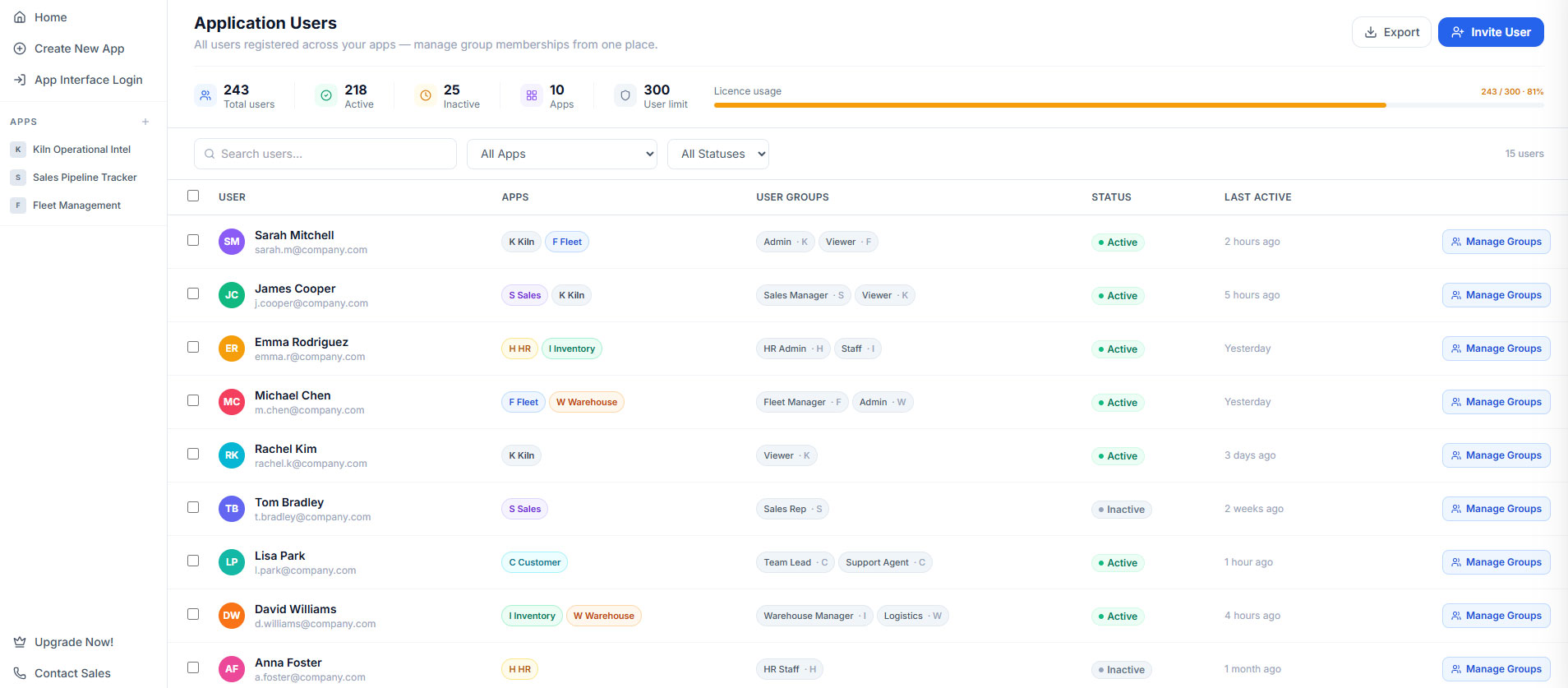
What you'll see
At the top of the page, header stats give you an at-a-glance summary:
- Total users
- Active users
- Inactive users
- Number of apps
- Seat usage against your plan limit (for example,
243/300, 81%)
You can filter the list by App, Status, or date range, search by name, and export the filtered list to CSV.
Inviting a user
You can invite a new user directly from this screen by entering their name, job title, email, password, access level, and an optional mobile number.
Managing group membership
Use Manage Groups to add or remove selected users from a User Group, either in bulk or one at a time. Pick an App, then pick a User Group within that app, and the change is applied to the users you've selected. This is a quick way to move users or grant them group membership without opening each app individually.
Seat usage for Application Users counts toward your workspace's Subscription limits, so it's worth checking Service Usage if you're approaching your plan's cap.
Frequently Asked Questions
What's the difference between Application Users and App Users?
Application Users (this page) is a workspace-wide screen showing end-users across every app you have. App Users is the per-app screen you open from inside a specific app to manage just that app's users and groups. Use Application Users for the big picture, App Users for one app at a time.
Is this the same as Workspace Users?
No. Application Users manages the end-people who use your finished apps. Workspace Users manages the builders who log in to Rayven to create and manage apps. They're reached from different places in the hamburger menu and control completely different sets of people.
Why does my seat usage number look different from my plan limit?
The header stats show seat usage against your plan limit, for example 243/300, 81%. If you're near or over that number, check your Subscription for plan limits and upgrade options, overages for Application Users are typically billed per extra seat rather than blocking access.
Can I move a user into a group without opening their app?
Yes. Use Manage Groups from this screen, pick the App and then the User Group within that app, and the change applies to your selected users without opening each app individually.
Can I export a list of my end-users?
Yes. Filter the list by App, Status, or date range, then export the filtered results to CSV directly from this screen.
Where do I check email or SMS delivery to my Application Users?
Check the Email & SMS Log for a full audit trail of every message your apps have sent.
What roles can I assign when inviting a user from this screen?
The same per-app roles used everywhere: Admin, Editor, or Viewer. See App Users & User Groups for what each role and its Interface access actually controls.
Can I apply a label-based data filter to a user from this screen?
No, data filters are set per User Group, not per user, under that app's App Users screen. See Core Concepts: Labels for how the filter itself works.
How do I invite someone to build apps instead of just use one?
Use Workspace Users & Roles instead of this screen, Application Users only manages people who use finished apps, not people who build them.
Related articles
For more on managing users in Rayven, see: